
Small details matter on the web.
One of those details is the favicon — the tiny icon shown in browser tabs.
Even though it’s small, a favicon helps visitors recognize your website instantly and builds trust over time.
In this guide, we’ll explain what a favicon is, why it matters, and how to add or change it in WordPress — without stress.
What Is a Favicon?
A favicon is a small icon that appears:
- in the browser tab
- in bookmarks and favorites
- sometimes on mobile home screens
If you don’t set one, browsers show a default icon instead.
Most websites use a simplified version of their logo or a single letter as a favicon.
Why a Favicon Is Important
A favicon helps with:
- brand recognition
- professional appearance
- trust and familiarity
When users have multiple tabs open, the favicon makes your site easy to spot.
For businesses, it adds legitimacy.
For personal sites, it helps visitors remember you.
Favicon Size and Format (Simple Explanation)
WordPress recommends uploading a 512 × 512 px square image.
It automatically creates smaller versions for different devices.
Best formats:
- PNG (recommended)
- ICO (older standard, still supported)
Avoid complex images — simple shapes and strong contrast work best.
How to Add a Favicon in WordPress
Option 1: Use WordPress Site Identity (Best Option)
This is the easiest method.
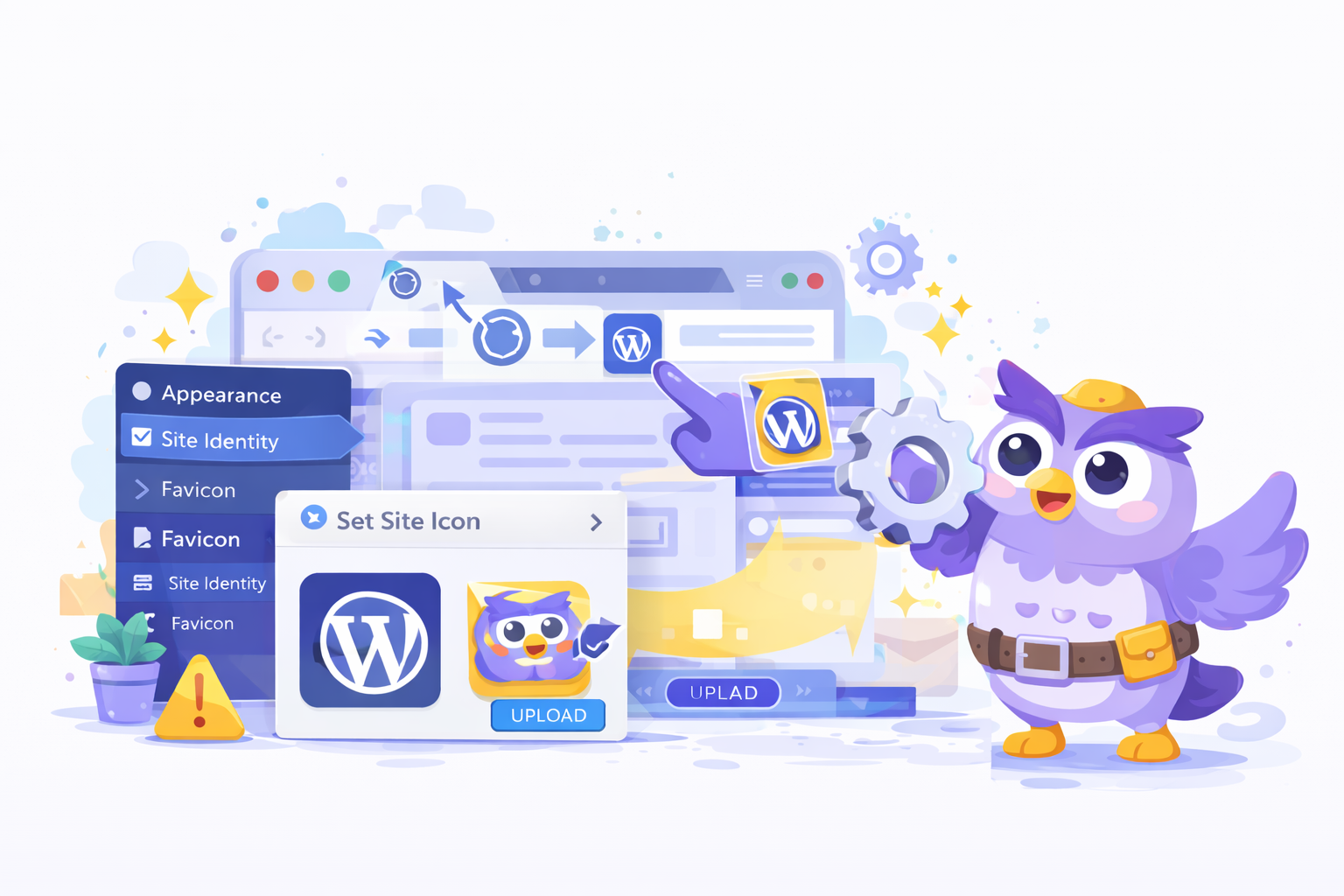
- Go to Appearance → Customize
- Open Site Identity
- Upload an image under Site Icon
- Crop if needed and publish
That’s it. WordPress handles the rest.
Option 2: Use a Plugin
If you prefer plugins, there are tools that:
- generate favicons automatically
- add them without touching theme files
This can be useful for beginners or older themes.
Option 3: Add It Manually (Advanced)
Advanced users can add a favicon by editing the theme’s header file and linking the icon manually.
This method requires:
- correct file paths
- backups
- care during theme updates
For most site owners, this is unnecessary.
How to Change a Favicon
Changing a favicon works the same way as adding one:
- upload a new image
- replace the old one
If you don’t see the change immediately:
- clear your browser cache
- do a hard refresh
- wait a few minutes
Browsers often cache favicons aggressively.
Why Your Favicon May Not Show Up
Common reasons:
- browser cache
- incorrect image size
- wrong file format
- typo in file path
Always test your site in a private window or another browser.
Final Thoughts
A favicon is small, but it makes your website feel complete.
It improves recognition, trust, and overall polish — and takes only a few minutes to set up.
If you’re managing a WordPress site long-term, small tasks like this add up. Regular maintenance helps ensure nothing breaks or gets overlooked.